
A WiFi Access Point that is automatically created when the WiFi signal is lost but reconnects to the WiFi network when it is back in range, so that a WiFi connection is always available.
For portable devices such as a Raspberry Pi and Linux Laptops that use Network Manager. Useful for both headerless and desktop setups.

With the Raspberry Pi being so portable it is always useful to have a wifi connection. When the wifi signal has been lost due to a weak signal, it can be a bit of a nightmare trying to get access to the Pi without a screen.
The script in this Article will monitor the wifi connection and make sure you are connected to a known Wifi network when the signal is good or it will create a WiFi access point, so you will always have a wifi connection available. It will also allow you to flip to an Access Point with a simple command and back to a WiFi network on demand.
Originally developed for the Raspberry Pi, it has been updated to run on most Linux devices that use Network Manager.
The Access Point will allow a direct Wifi connection to the Pi from a Phone, Tablet, Laptop for use with ssh, VNC desktop sharing, a local web server, etc.
Every 2 minutes the AccessPopup script will check the local wifi network signals. If a known one comes back into range, then a connection is made to the wifi network and the Access Point is stopped *.
This is useful for Devices that may be running sensors, cameras or other monitoring software in your Garden, Greenhouse, Shed or Garage that may be where the WiFi signal is weak. You will always be able to get a connection over wifi and is ideal for headerless setups.
This is also useful for any setups where the Pi is required to go in and out of wifi range.

Compatibility:
The AccessPopup script should also work on any Debian, Fedora or Arch Linux device or variants of these distros, (Single Board Computer, Laptop or CyberDeck) that use Network Manager and SystemD. Python is also required for the optional web page controls.
A Raspberry Pi 64 bit computer (Pi5, 500, Pi4, 400, Pi3/+ Zero2) PIOS 12 Bookworm or newer is required as older versions don't use Network Manager.
The Rpi ZeroW is too slow to work reliably with this on PiOS 13 Trixie so using 12 Bookworm is recommended. The Rpi Zero 2 works fine on PiOS Trixie.
Using a Rpi Zero W 32bit OS, the Access Point connects fine with Windows 11 and Linux but on Android (tested on 15) it does not connect with “password incorrect” this seems to be Androids stricter connection settings.
For older Raspberry Pi OS's there is a similar script called Autohotspot available on RaspberryConnect.com raspberry-pi-automatic-hotspot-and-static-hotspot-installer which uses dhcpcd instead of NetworkManager. Also available on the GitHub repository below.
Installation and Use:
Latest versions:
accesspopup 0.9 22nd March 2026
installconfig.sh 1.01 16th April 2026
Previous_Version of InstallConfig.sh:
If you have a version older than version 1 installed then uninstall AccessPopup before installing version 1 or newer, as there is a different configuration from version 1.
Installation:
AccessPopup is available on GitHub at https://github.com/RaspberryConnect/AccessPopup
If you have the GIT command installed on your system then use git clone https://github.com/RaspberryConnect/AccessPopup.git
Otherwise while still on GitHub use the “Code” button and choose Download.zip
This will download AccessPopup-main.zip
UnZip the files using the Desktop option or the command unzip AccessPopup-main.ziprename the foldermv AccessPopup-main AccessPopup
Next cd to the AccessPopup folder.cd AccessPopup
To run the Installer scriptsudo chmod +x ./installconfig.shsudo ./installconfig.sh
Change the password with option 2
The menu options below will be presented. Use option 1 to install the AccessPopup scripts.
This will automatically start monitoring the wifi connection every 2 minutes. It will also check the wifi at startup and then at every 2 minute intervals.
Setting a Constant Access Point:
Sometimes it is useful to be able to use the AccessPoint even though the device is in range of a known WiFi network.
This can be done by opening a terminal window and entering the command:sudo accesspopup -a
to go back to normal use, just run the script without the -a argument.sudo accesspopup
alternately use option 4 "Live Switch..." on this installer script.
If you find this guide useful and wish to show your appreciation then you are welcome to make a donation or share a link to this article. There is no obligation to do so, this guide is free for use and support is available to everybody as long as I know the answer :)
I am the single developer of this script and website. Any support towards the costs are welcome.
RaspberryConnect.com
Alternately a Coffee would be appreciated to keep me going!
Menu Options:
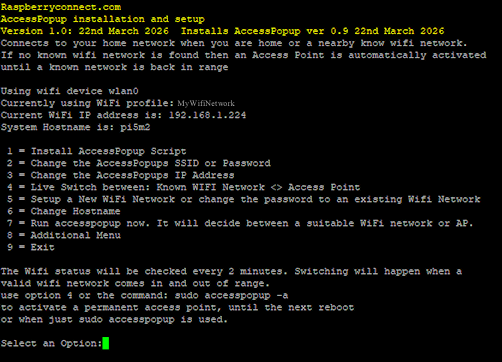
1 = Install AccessPopup Script
Installs the AccessPopup script and starts the 2 minute checks
2 = Change the Access Points SSID or Password
The access points wifi name (ssid) is AccessPopup and the password is 1234567890.
Use this option to change either or both. At least change the terrible password.
3 = Change the Access Points IP Address
The Access Points IP address is 192.168.50.5. Use this option to choose a new IP address, based on 10.0.#.# or 192.168.#.# This is the ip address that is used when using ssh, VNC or a webserver while another device is connected to the Access Point
4 = Live Switch between: Network WiFi <> Access Point
Switch on demand. Set the Pi to an Access Point until the next reboot or switch back to a known WiFi Network in range.
5 = Setup a New WiFi Network or change the password to an existing Wifi Network
Scan for local WiFi networks and connect to a new one or change the password to an existing profile.
6 = Change Hostname
Change the system Hostname, so a connection can be made by name instead of an IP address.
7 = Run AccessPopup now.
The AccessPopup script will decide between a known WiFi network or an AP if one is not in range.
8 = Additional Menu options:
8-1 = Web Interface - enable & disable switch
Installs the Web interface if not previously installed. Then used to enable or disable the web page controls.
Webpage controls are available at http://ip-address:8052 http://hostname:8052 on a wifi network or http://192.168.50.6:8052 for the Access Point.
8-2 = Change the Webport
Change the webport from 8052 to a port of your choice.
8-3 = When Wifi is Disabled: Automatically re-activate Y/N
The AccessPopup script will enable the devices Wifi if it is disabled when it runs every 2 minutes.
If WiFi availability is managed elsewhere on the device then this will disable WiFi activation when AccessPopup is run.
8-4 = Uninstall accesspopup and Web app
Removes the AccessPopup files and the Web Interface if it has been installed.
8-5 = Exit back to previous menu
9 = Exit
Using the Access Point:
“ACPU_Device” = Device Running the AccessPopup Script
“Phone” = WiFi Device connected to the ACPU_Device
An expanded version of this guide is available at www.digislides.co.uk
For the rest of this guide I will refer to the device running the Linux AccessPopup script as the “ACPU_Device” so this will be the Raspberry Pi or other Single Board Computer or a Linux Laptop.
The device connecting to the ACPU_Device over Wifi, either directly to the Access Point or via another Wifi Network as a “Phone”. This can be any wifi capable device.
When the Access Point has been activated, the SSID “AccessPopup” will be broadcast. Using a Phone scan for new wifi devices in the area, and select “AccessPopup”.

You will be prompted to enter the password.If you have not already changed it, the in-secure default password will be 1234567890.
If you have not already changed it, the password will be 1234567890. Don't use the password that is used to log into the Raspberry Pi.
The Phone will now be connected to the Access Point.
SSH, VNC, Web Server
Now that a connection to the Access Point has been made, if you are using SSH, VNC or accessing a web server on the Phone then use:
ssh: ssh
VNC remote desktop: enter the server as 192.168.50.5
Web server: if there is a web server running on the “ACPU_Device”, it can be used by entering http://192.168.50.5/ into a web browser.
The Hostname can be used to replace the ip address only when the ACPU_Device is connected to a WiFi network.
If the ACPU_device has the Access Point active and an Ethernet connection to the internet is available, then the Phone will also have internet access.
Using AccessPopup in a terminal window:
AccessPopup is set to run automatically every 2 minutes but it can be run manually to switch to the Access Point.
In a terminal window enter: sudo accesspopup -a
The access point will be activated and the timer will be stopped so it doesn't try to connect to a Wifi network again in 2 minutes.
To re-connect to a nearby known wifi network, either reboot or run the script without -a or reboot.
sudo accesspopup
This will attempt to connect to a known local wifi network and re-activate the 2 minute timer.
If a wifi network connection can't be made, it will activate the Access Point again and continue to monitor the connections every 2 minutes.
Configuration File
The InstallConfig menu options allows you to change several features of the AccessPopup script. These settings update the file at /etc/accesspopup.conf.
The configuration is read by the accesspopup script each time it runs but only effect the Network Manager AccessPopup profile when it is first created.
So generally you only need to use the installconfig script to make changes to how the Access Point is setup.
If any option other than “re_enable_wifi=” is changed manually then the AccessPopup Network Manager profile must be deleted before any changes take effect.
To Delete the profile use the command; nmcli con del AccessPopup
The next time the Access Point is created it will have the new configuration.
Default Wifi Device:
The WiFi device can also be change. By default the ACPU_Devices internal WiFi device is used, such as wlan0. If you wish to use a USB Wifi Dongle on wlan1 with AccessPopup then update the line
#Default Wifi Devicewdev0='wlan0'
to
#Default Wifi Devicewdev0='wlan1'
Delete the existing profile with; nmcli con del AccessPopup
Wlan1 will be used for the Access Point and any WiFi Network profiles required.
Please Note: If any WiFi Network Profiles have been setup with the device name of wlan0 it will fail when the AccessPopup script tries to switch to it.
You will need to setup new connection profiles with the wlan1 setting via the installconfig menu option 5 or the Desktop Wifi GUI.
Considerations and behaviour:
The Access Point disconnects every 2 minutes.
If a WiFi network profile is setup but the password is not correct, then the connection will fail. Once there is an attempt to connect to a WiFi network, it is added to the list of known networks by Network Manager.
When an Access Point is active, every 2 minutes it will be deactivated to connect to the bad WiFi network when it is in range. This will disrupt any connections to the Access Point from the Phone.
The Access Point will be re-enabled once the connection to the Wifi network has failed.
If you experience this, then correct the password with option 5 or the Desktop gui WiFi option. Otherwise delete the bad Wifi network entry.
* The Access Point is in use but does not switch to a known Wifi Network that is in range.
If the Access Point is active and the Phone is connected to it when a known WiFi network is in range, it will not switch to keep the connection with the Phone and not interrupt anything you may be doing. Once the Phone disconnects from the Access Point and the 2 minutes are up the ACPU_device will switch to the known wifi network.
Ethernet connection to the ACPU_Device
If an Ethernet cable is connected to the ACPU_Device and the Access Point is available, any device connected to the Access Point can ssh/vnc/ping etc the other devices also connected to the access point and the network the Ethernet is connected to. This includes the internet, if it is available.
This does not work the other way. No device on the Ethernet's network can connect ssh/vnc/ping etc to the devices connected to the access point. The Ethernet network can access the ACPU_device, as it is on both networks.
Using a Second WiFi Device
When a second Wifi device is connected to the ACPU_device such as a USB Wifi dongle, no device connected to the access point can ssh/vnc/ping etc the network that the second Wifi device is connected to. Devices connected to the Access Point can only access the internet or other networks through a connected Ethernet cable.
To do this through a second wifi device requires additional configuration which is not in the scope of this setup.
Loss of Connection when a Switch happens
Any connection to the ACPU_Device from the Phone will be disconnected when the ACPU_Device switches from a Wifi Network connection to an Access Point and back.
If you are using SSH, then programs such as TMUX will keep your session running while a connection from the Phone to the ACPU_Device is made on the new network.
VNC will reconnect if you are using a Hostname as the server connection. If you have connected with an IP address, then you will need the new IP address from the wifi network the ACPU_Device has connected to.
Loss of Wifi the Connection:
If the wifi is disconnected, then wait a couple of minutes and the Access Point will be created or a re-connection to a known Wifi network will be made.
Hostapd not compatible
If hostapd is active on the ACPU_Device then the Network Manager Access Point will fail as there will be a conflict. Either disable hostapd with:
sudo systemctl stop hostapd
and
sudo systemctl disable hostapd
or uninstall hostapd
Multiple Devices with AccessPopup installed:
If you have more then one device with AccessPopup installed then change the SSID with option 2. This is so you can tell which device has the Access Point active. Otherwise they will all be called “AccessPopup” and you won’t know which device to connect to. The IP address does not need to be changed as they will each be independent connections.
Visibility of Access Point connected devices
All devices connected to the Access point can ping and connect to each other using their IP address as well as the device running AccessPopup (ACPU_Device).
If an Ethernet connection to the internet is available on the ACPU_Device then all devices connected to the Access Point will have internet access and can also ping and connect to the devices on the Ethernet network. Unless Firewall restrictions are in place.
The devices on the Ethernet network can ping and connect to the ACPU_Device but they cannot ping or connect to the devices connected to the Access Point.
If you wish to connect in this way then connect to the ACPU_Device first via ssh or VNC and then connect to the required device via the IP address.
Dependencies
The AccessPopup script requires various packages to be available on the Linux system. They will also be installed if they are not available other than Network Manager and SystemD.
- Network Manager
- SystemD
- IW
- dnsmasq-base (Debian)
- dnsmasq (Fedora, Arch – should be disabled in SystemD).
For the optional Web Interface, Python with a Virtual-Env and PIP will be required. If Python is not already on the system then the Web Interface will not be installed.
Pip and a virtual env will be installed if Python is available but they are not installed.
Web Interface:
Install, Enable and Disable the web interface with menu option 8-1.
Guide Reference:
“ACPU_Device” = Device Running the AccessPopup Script
“Phone” = WiFi Device connected to the ACPU_Device
When activated the web interface is available at http://ip_address:8052 or on a WiFi network http://hostname:8052. On the ACPU_Device you can also use http://localhost:8052 or http://127.0.0.1:8052
There is a user Guide on the Web Interface for convenient information.
Because the AccessPopup script and functions on the Web Interface are about switching between Wifi Networks the Web Interface pages will be disconnected from the ACPU_Device with some features.
So you will need to make sure the ACPU_Device and Phone are on the same WiFi network at all times for it to be used.
Please Note: If you use the “Switch to AP” button or have used the command “sudo accesspopup -a” the ACPU_Device will be in a permanent AccessPoint mode.
Then if you use the option to change the Access Points password or SSID, the Network Manager profile for “AccessPopup” will be deleted so that the new details can be used. The AccessPopup script will return to the Timer mode and check the connection every 2 minutes.
This is because the Access Point will be shutdown to make the changes and if there is no known WiFi network in range there will be no WiFi access to the ACPU_Device.
Please Note Again: because the features of the Web Interface are for modifying the network setup. Even though multiple devices can view the pages at any one time. Only one connection should make changes at a time to avoid causing issues.
Home Page:
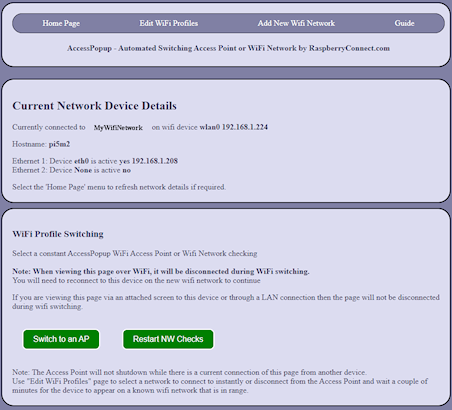
This page show details about the network devices.
Wifi network, device and IP address.
If Ethernet is connected then the IP address will be shown
Refresh this page to get the current connection details when making changes.
The “Switch to AP” will force the ACPU_Device to an Access Point and stop the 2 minute timer.
The “Restart NW Checks” button. Connect to a known Wifi Network in range and restart the 2 minute Timer.
This will only work on a ACPU_Device with a screen. As the Phone will be connected to the Access Point the switch to a Wifi Network is not available. Use the “Edit WiFi Profiles” page to connect to a selected Wifi Network.
(change this to re-enable timer which will run accesspopup. AP won’t be lost until phone disconnects.)
Edit Wifi Profiles
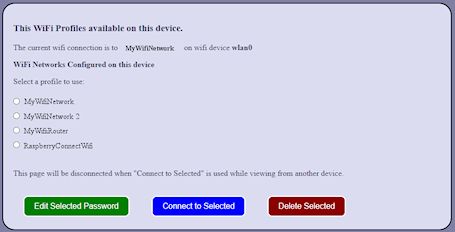
This page lists the known wifi networks setup on the ACPU_Device.
If there are no Networks listed then none are available. Use the page “Add New Wifi Network” to create a new profile.
Select the required network from the list.
“Edit Selected Password” – This will allow you to update the password for a previously save Wifi Network.
It will then be connected to. If there is an issue while connecting, such as an incorrect network name, then it will be deleted.
“Connect to Selected” – Connect to the selected network.
If “Switch to AP” on the home page has been used so the Timer is disabled, using this option will re-enable the 2 minute timer.
“Delete selected:” Delete the stored profile.
If the currently connected profile is deleted then an attempt will be made to connect to another nearby network by Network Manager.
If there is no suitable connection available you may have no wifi until the next 2 minute timer is complete. AccessPopup will then create an Access Point if required.
AccessPopup Profile:
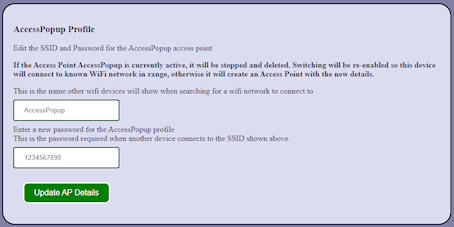
Here you can change the AccessPopups SSID so other Wifi devices see the Wifi Name of your choice. This is also useful when there are multiple devices with AccessPopup running, so you can identify which device has its Access Point active.
The Password can also be change here. If the default insecure password is still available then it's a good opportunity to change it.
You can change either or both settings. Please Note: If the ACPU_Device is in a permanent Access Point mode with the "Switch to AP" button or the accesspopup -a command, then it will be returned to a switching 2 minute timer.
This is because the profile will be deleted so the ACPU_Device will be left with no wifi connection, if there is no Wifi network is in range."
Add New Wifi Network
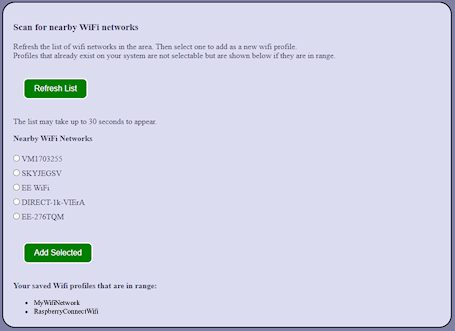
Select the Refresh List button to see a list of nearby wifi networks you can choose to create a new connection for. Please allow the scan to complete before clicking elsewhere.
This can take 30 seconds or so for the list to appear.
If any of the Wifi networks that are configured on the ACPU_Device are in range then they will be shown underneath the selectable list. These can be connected to on the "Edit Wifi Profiles" page.
When you have selected a new network from the list and clicked "Add Selected", you will be asked to enter the password.
When "Connect to Selected Network" is clicked, an attempt will be made to connect to the new network.
If the Connection is successful, the page will timeout as the Phone will now need to connect to the same selected network to reconnect to the Server to continue to use the Web App.
If the connection is not successful, such as the incorrect password, then the new profile will be deleted. The ACPU_Deice will either connect to another known Wifi Network or if none are available the Access Point will be started. So you will need to locate what the ACPU_Device has done to continue.
Please Note: some laptop wifi devices are not able to scan for nearby networks if they have an Access Point active.
If this is the case then you will be asked to manually enter the new networks SSID and Password instead of selecting the SSID from the list.
The Access Point will then be stopped and the ACPU_Device will attempt to connect to the entered WiFi network. Any issues such as an incorrect password will cause the profile to be deleted and the ACPU_Device will connected to a known Wifi network or generates the Access Point.
Devices warning of No Internet
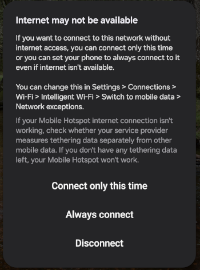
When a Phone, Laptop, Tablet first connects to the AccessPopup access point it may warn you that there is no Internet connection and ask if you want to continue with the connection or just for this session.
The access point won't have internet access unless the ACPU_Device has an Ethernet cable connected, which is also connected to the internet. So choose "Always Connect".
General Connection Issues
A Wifi connection can be affected by many factors outside what this script is doing, such as;
interference
too many wifi signals on the same channel
a low battery on the device
too many devices connected to the device for the available power supply meaning there is little power to run wifi reliably
The AccessPopup script does not make the connection to network devices, it only monitors the active Network Manager profile and de-activates and activates profiles as required.
Network Manager creates and manages the connections and permissions between devices. If you suspect that AccessPopup script is causing an issue please uninstall AccessPopup and try to replicate the problem you are having.
If the issue only occurs while the AccessPopup script is running then please contact me with as much detail about your system and the issue you have and I will be happy to look into this further.
Issues of poor connection, slow data can be due to a device and not the AccessPopup script especially when the Access Point is not active.
While the Access Point is active; if there are connection issues that you do not experience with other Access Point setups then I will be happy to investigate further.
If the web app becomes unresponsive but you know the ACPU_Device and Phone are on the same network, then there may be an issue. You can restart the web server by using the installconfig script. Use option 8-1 “Web Interface - enable & disable switch” to disable the Web App and then again to re-enable the Web App.
Support
AccessPopup has been developed by a single developer. If you find this useful and you would like to show your support then I would appreciate any promotion on social media or a donations towards the cost of development and web hosting or even just a comment on RaspberryConnect.com to say how you are using the AccessPopup as it is always interesting to hear how this project is being used. Ultimately I hope you find it useful.
muchas gracias for sharing!
You are welcome, I am glad you like it and find it useful.
You are welcome. I am glad you find it useful.
The best way to upgrade is to uninstall your current installation with existing installconfig.sh script. This is because the new version uses different destination folders, so it won't uninstall the older version correctly.
Then download the update from Github by following the "Installation and Use" instruction at on this page
Then with the new installconfig.sh script use option 1 to install the Accesspopup script and then option 8 then 1 to install the web app.
Hopefully I have made my guide on this page understandable but let me know if any info is not understandable.
If you have any issues with the scrips please let me know.
I have a previous version and I'd like to update to latest one in order to use the web interface, can you provide the guidelines?
One, I'd like to set up open wifi (no password/encryption).
Two, even with the password when I try to activate the profile I'm running into:
The AccessPoint profile has been renewed due to an issue while activating it.
AP failed to be activated.
The message is: Error: unknown connection 'AccessPopup'.
Three, not a problem: I've had it working before on an older (pre-Network Manager) Pi and I really appreciate you writing this up. I'm a developer, not a sysadmin, and fumbling through command-line networking is comical at best, "whoops time to reformat the SD card" at worst. Thanks!
It does seem Trixie is a bit of an issue on the slower Pi's. The ZeroW is too slow but the Zero 2W seems to be ok.
The joys of networking, it can be a bit of a minefield with conflicting info out there.
So the issues shouldn't need a Format you will be glad to hear.
At the momment it's not setup for and open network. you can modify the Access Point to remove the password but if there are any issues while switching to the Access Point it will get deleted and regenrated as a fail safe. This will put the password back.
But if you want to try for testing purposes, make sure the Access Point isn't active and enter this command:
nmcli con mod AccessPopup 802-11-wireless-security.key-mgmt none 802-11-wireless-security.group "" 802-11-wireless-security.pairwise "" 802-11-wireless-security.proto ""
Then when it is next activated it will be password free.
I am days away from releasing a muti feature update, which dosn't have an open WiFi access point but I can add that in soon after.
Thanks for the bug report. i belive what is happening is the AccessPoint has been created but the check happens before it is fully in place on the Pizero2 so you get the message it dosn't exist. I have checked this on my Pizero2 with the update and it works ok, so keep an eye out for the update.
Use the command; nmcli con show
it will list all wifi profiles on your Pi and AccessPopup should be one of them once it has been first activated.
I'm glad you find my scripts useful and hopefully the update will make it easier, but let me know if you have any further issues after.
The AccessPoint bug went away after a reboot, so I'll wait on the full update.
Thanks for the update. You will probably only see that when the AccessProfile gets created the first times it is used.
I have released the update which has a short delay added which should fix the issue on the Zeros.
I have put the Open Network option on the to do list, so I will look at that for the next round of updates.
I have a second WiFi adapter connected via USB to raspberry pi 4B with bookworm.
I would like to use the wlan1 (wlan on USB) for the Access Point and waln1 to connect to known networks, how to implemt it?
thanks
The Wifi device can be updated in /usr/bin/accesspopup
At the top of the script is this line.
#Device Names
wdev0=wlan0 #wifi device that AP will work on
change to
wdev0=wlan1
When 'accesspopup -a' is run it "should" delete the current AccessPopup profile that has wlan0 and create a new one with wlan1
otherwise before using accesspopup -a you can delete it manually with
nmcli con del AccessPopup
I am about to release an update with several new features which includes a configuration file where you can change the wifi device as well as other options. If all goes to plan it will be available in about a week.
I know the zero W has a single WiFi chip which can be tricky as it can only do 1 thing at a time... Has anyone else had success with the zero W? I read the comments above and tried all of them but no success. Thanks!
The script should work on the Zero W, I have had it working in the past but not revisited that in a while so I have not tried it with Trixie.
I will give it a go tomorrow (Thur) and get back to you.
I setup Trixie 32bit on a Pizero W. I forgot how slow they are which turns out to be the issue.
When the Access Point is created it takes so long for Network Manager and the supporting processes to do their thing it times out. This is not caused by the AccessPopup script as it also does it when I tried to manually change from a WiFi network to a basic Hotspot profile. Even just stopping wifi and then starting the Hotspot up it timed out.
I did try a few fixes but nothing worked. So it seems the Pizero W is to slow to raise an Access Point on Trixie which is a surprise. So a Pi Zero 2 is the minimum device you can use with Trixie which does still work.
I will give it a go on Bookworm 32bit and see if that is any better. Let you know.
I have setup Trixie 32 bit on a RPi Zero W, I forgot how slow they are. This turns out to be the issue.
When an Access Point is selected it takes so long for Network Manager and the supporting processes to to their thing that the networking setup times out. This is not due to the AccessPopup script but the system. I manually created a hotspot profile and selected that and it also timed out. Even if wifi networking is stopped and then just activating the Hotspot it also fails.
So the Pi Zero 2 is the minimum you can use with Trixie which is a surprise.
I will also check how Bookworm works on the Pi Zero W and see if there is any progress there. Update you soon.
The Access Point can be created fine on PiOS Bookworm 32bit with a RPi Zero W so I would recommend that instead of Trixie.
Thanks for your continued interest :)
I am currently testing and writing the guide for the new upgraded version, which has taken longer than I hoped, but it "should" be available in a few weeks. I have it working on a Ubuntu x86 Laptop as well as the Pi's so hopefully it will work on Mint as well.
If not I will be testing and updating it on some popular Arm and x86 distros once it has had the initial release.
So as long as there is no show stoppers it should be working on Mint in the not to distant future.
I have finally managed to check my pizero2 with bookworm. It worked fine for me on my setup.
You can try and create a basic hotspot manually and see what error you are getting. You will need a screen for this if possible as you will loose the network connection if it fails.
enter the command:
sudo nmcli device wifi hotspot ifname wlan0 con-name TestAP ssid TestAP band bg channel 6 password 1234567890
this will create a AccessPoint with a SSID of TestAP and the usual poor password. The default IP address will be 10.42.0.1 instead of 192.169.50.5.
Let me know what errors you get if any.
Also just to confirm you are using the 64bit desktop PiOS or Lite edition or even 32bit edition?
Let me know how you get on and I will look into it further.
I get the same message as john (2025-11-19):
RaspberryConnect.com - AccessPopup: Automated Access Point.
The active profile is preconfigured
AP failed to be activated.
The message is: Connection successfully activated (D-Bus active path: /org/freedesktop/NetworkManager/ActiveConnection/7)
Running on a RPi 2W with bookworm.
I do NOT have hostapd or dnsmasq running.
```nmcli con show``` shows only one AccessPopup entry. And, even after deleting that one, running ```sudo accesspopup -a``` again results in the same message as above.
I also tried uninstalling and re-installing AccessPopup to no avail.
Any ideas?
Thank you for the feedback.
I will grab my PiZero2 from another project and see if I can reproduce the issue on bookworm and get back to you. It may be a few days though.
Problem is i cant seem to get it to work. I get the following msg all the time after running sudo accesspopup -a
RaspberryConnect.com - AccessPopup: Automated Access Point.
The active profile is home
AP failed to be activated.
The message is: Connection successfully activated (D-Bus active path: /org/freedesktop/NetworkManager/ActiveConnection/3)
I have stopped, disabled and remove Hostapd
set my ssid etc set ip address rebooted but nothing works
Help please
Regards
John
Thanks for the highlighting the issue. We should be able to get you up and running.
The error is because, for some reason, the script was unable to find a valid AccessPopup profile so goes to create one. Then it is unable to create the AccessPopup profile within Network Manager.
Run : nmcli con show
This shows all the Network manager profiles on your system. Check that the AccessPopup profile name does not appear more than once. If it does then delete all the entries with; nmcli con del AccessPopup
Once all the AccessPopup profiles have been deleted try sudo accesspopup -a again.
You can do all of this in the WiFi GUI on the desktop as well.
I have rarely seen this happen but not replicated it yet. If this is not the issue can you let me know what Pi and OS you are using. I presume your wifi is on wlan0?
Does it connect to your wifi network ok and it is just the AP that is not being created or started ie no SSID being broadcast?
Also uninstall and re-install accesspopup to go back to all the default setting so we can get that working from the same base.
Hopefully this helps but let me know and I look into it further.
Thanks for responding so quick.
Well I have managed to get it to actually create the hotspot but it doesn't show up on any of my devices so i cannot connect to it
I am at the moment trying to use it on a Pi zero2w. with a RTC module. My wifi is on wlan0.
I have stopped disabled and removed hostapd.
It connects to my home wifi without problem. I have already re-installed using all the defaults including that great password lol. at the moment i have been trying just using the hotspot on all the time using the -a argument
I also have a Pi4b - 8GB but havent tried it on there yet
Looking forward to getting this to work
Here are the details after I SSH into the pi. Hope this makes sense to you as i am just getting into RPI for use as an allsky camera
Linux allsky2b 6.12.47+rpt-rpi-v7 #1 SMP Raspbian 1:6.12.47-1+rpt1~bookworm (2025-09-16) armv7l
The programs included with the Debian GNU/Linux system are free software;
the exact distribution terms for each program are described in the
individual files in /usr/share/doc/*/copyright.
Debian GNU/Linux comes with ABSOLUTELY NO WARRANTY, to the extent
permitted by applicable law.
Last login: Thu Nov 20 09:46:24 2025 from 192.168.1.210
pizero2b@allsky2b:~ $ sudo accesspopup -a
RaspberryConnect.com - AccessPopup: Automated Access Point.
The active profile is home
AP failed to be activated.
The message is: Connection successfully activated (D-Bus active path: /org/freedesktop/NetworkManager/ActiveConnection/5)
pizero2b@allsky2b:~ $ nmcli con show
NAME UUID TYPE DEVICE
home 23a3dd61-2709-46f4-bb38-e7d15d9dadc0 wifi wlan0
lo 6ddfba2b-b06a-44a4-8b4a-a1128de19034 loopback lo
AccessPopup 16db1b3f-f619-46d1-87dc-6c1bbe9c986a wifi --
Wi-Fi connection 1 5dcfec9d-8d3f-41c1-b69f-994f9b28d5a6 wifi --
zero2wtest 27c1ac12-d0c9-41b7-ab09-dce109cfb62d wifi --
pizero2b@allsky2b:~ $
Thanks for the info.
It should work fine with that setup. It looks like you have to install AllSky onto as standard PiOS image.
I'm thinking that there is some software that is conflicting with the NetworkManager Hotspot setup.
As you have had hostapd installed, is dnsmasq running on your system?
If so you can also stop it and deactivate the dnsmasq.service and try again.
dnsmasq-base is required but would have been installed as part of the AccessPopup setup but you can check with;
dpkg -s dnsmasq-base
you should see; Package: dnsmasq-base
Status: install ok installed
do you have any entries in /etc/network/interfaces other than
# interfaces(5) file used by ifup(8) and ifdown(8)
# Include files from /etc/network/interfaces.d:
source /etc/network/interfaces.d/*
If you do then comment them out and try again.
Another thing to try if possible is put the SD in the Pi4 and also connect an Ethernet cable or use a screen otherwise you will loose the wifi signal.
Manually activate the AP with; nmcli con up AccessPopup
you should get "Connection successfully activated " otherwise let me know of any error.
Then you can switch back with; nmcli con up home.
I have tries this on my Pizero2 but with PiOs Trixie SD which worked ok, I haven't got a Bookworm SD to hand at the moment but if you are still having an issue I will do a Bookworm SD test.
Hopefully this helps.
Thanks for the response.
As you have had hostapd installed, is dnsmasq running on your system? Yes it is running
If so you can also stop it and deactivate the dnsmasq.service and try again. How?
dnsmasq-base is required but would have been installed as part of the AccessPopup setup but you can check with;
dpkg -s dnsmasq-base
you should see; Package: dnsmasq-base
Status: install ok installed Yes thats what i see
do you have any entries in /etc/network/interfaces other than Do not have interfaces directory in /etc/network
# interfaces(5) file used by ifup(8) and ifdown(8)
# Include files from /etc/network/interfaces.d:
source /etc/network/interfaces.d/*
Have not yet had the time to try on the other pi4 but will do sometime later.
As i said it seems to create the hotspot but it doesnt show up for my other devices to connect to.
john
Thanks for the update.
Stopping dnsmasq should solve the issue, just use the following commands.
sudo systemctl stop dnsmasq.service
sudo systemctl disable dnsmasq.service
You should now see the AccessPopup ssid being broadcast when it is next activated.
but let me know if there is still an issue.
Thanks for all your help.
I will recommend this method to others whenever i can.
Does exactly what i want it to do.
One final thing. Is the stop then disable of dnsmasq.service permannent once done or will i need to do it after each reboot.
Once again thanks.
John b
Now I'm trying to set up a new RPi 02W with BirdNET-Go as a stand-alone device. As PiOS 13 Trixie is the actual OS, I wonder does AccessPopup works with it?
Thanks, Geert
Thank you, I'm glad you find it useful.
I am currently working on a big update which I hope to release in the not to distance future. Currently on the testing stage. So I haven't yet checked out the existing version on Trixie as the new version will be checked out on that.
There is nothing in the Trixie update that is of concern and Network Manager has not changed. But I have just installed Trixie on a Pi5 with the 64bit Desktop edition and done some basic testing of the Installer and accesspopup switching. There was no obvious issues and worked as expected. So yes it does seem to work ok on PIOS Trixie based on the above.
I will be testing the new edition more thoroughly to make sure it is ok on Bookworm and Trixie before release.
Just from my site a note of how to install on the latest Armbian Bookworm. (24-04-2025)
OS Armbian Bookworm ==> sudo apt-get update (Not upgrade!)
sudo apt install network-manager
sudo systemctl start NetworkManager.service
sudo systemctl enable NetworkManager.service
sudo nano /etc/network/NetworkManager/NetworkManager.conf
Change:
[main]
plugins=ifupdown,keyfile
[ifupdown]
managed=false
Into:
[main]
plugins=ifupdown,keyfile
[ifupdown]
managed=true
ctrl o ctrl x
Next, change the Netplan .yaml file(s)
sudo nano /etc/netplan/10-dhcp-all-interfaces.yaml
Change:
network:
version: 2
renderer: networkd
ethernets:
all-eth-interfaces:
match:
name: "e*"
dhcp4: true
dhcp6: true
Into:
network:
version: 2
renderer: NetworkManager
ethernets:
all-eth-interfaces:
match:
name: "e*"
dhcp4: true
dhcp6: true
ctrl o ctrl x
Now check if you have to change in the same way another .yaml file in the same /etc/netplan directory. (armbian.yaml?)
Remove hostapd
apt-get remove hostapd -y
Reboot and install Automated Switching - Access Point or WiFi Network.
Good luck
But this is great info for anybody wanting to use it with Armbian and probably other similar setups without Network Manager installed.
Thanks for your support.
I do plan on making it available for different distros once I have added a couple more features.
It also doesn't work on my Ubuntu laptop, mainly because the Pi OS, Ubuntu for Pi and Arch for Pi, which it does work for all use wlan0 for the wifi device. Laptops don't use wlan0 so I need to get it to recognise that. So that's the main reason it doesn't work.
You can set the wifi device in the AccessPopup script though. There also seem to be quirks about setup I need to go through. Ubuntu will be my first target so Mint "should" work alongside that. Hopefully in the not to distant future.
its me again :-) Are there any news regarding support of "classical" Linux system?
Your script is still working fine on all my Raspberries :-) Great work!
Regards, Stephan
I have finally released the new update. I done some testing on Mint and found that there was some extra mods I needed to do. Then ended up making it compatible for Ubuntu, Mint, Debian, Fedora, Arch Linux and PIOS.
So It now all works on Raspberry Pi's, other SBC's and Linux x86 Laptops. Also includes an optional web interface for a easier controls.
Hopefully it now works as you need. Any issues then let me know.
1. The re_enable_wifi option in accesspopup. If the mobile device wifi should be switched off to save energy, it will be switched on again, whenever the accesspopup timer is called again. In this case the user needs to edit it under /usr/bin/accesspopup or in the original file before the installation.
2. An option like the -a that could be set permanently. It might be useful that the device chooses the kind of connection once on startup staying with that option until the next restart.
Thanks for the feedback and I'm glad you like the script.
The re_enable_wifi option was not fully implemented so I have finished it off and added it to the installer script as requested.
This is now available for download.
Your second request is how Network Manager works by default. If no wifi network is available and an Access Point profile is configured, then Network Manager will activate the AP. This will stay active until a reboot or the profile is manually changed.
If Network Manager connects to a Wifi Network at boot up and then looses the signal at a later point, it will not activate the AP. It will reconnect to the Wifi Network when it is available again.
The above behaviour is an issue when the Pi is at the outer range of the router or is prone to interference meaning you can't connect to your Pi. So the AccessPopup script is designed to make sure there is always a way to connect to the Pi over Wifi.
If you would prefer how Network Manager works by default then you can uninstall AccessPopup and set up a NetworkManager HotSpot via it's GUI or you can keep AccessPopup installed and disable the 2 minute timer.
sudo systemctl disable AccessPopup.timer
Network Manager will then work as it's default behaviour. If on occasions you want the AccessPopup features then run: sudo accesspopup
This will restart the timer but only for the current session. After a reboot it will be disabled again.
I hope this helps.
Experiencing a challenging WiFi network performance problem.
Setup:
AccessPopup running in Access Point mode on a Raspberry Pi with no other network connectivity. I'm accessing a web application hosted on the Pi using mobile devices (iOS and Android tested). No other wireless networks are within range.
Symptom: I can successfully connect my mobile device to the Raspberry Pi's Access Point and initially view the web application in the browser. The screen updates as expected for a few seconds, but then the updates cease on the mobile device.
Resolution: Uninstalling AccessPopup completely resolves the performance issue.
nmcli con show (this was done After uninstall accesspopup)
NAME UUID TYPE DEVICE
Wired connection 1 510a6102-0b24-3afa-a4d6-594149042cc9 ethernet eth0
lo b4c554a9-9399-4736-8263-6b3101c886b6 loopback lo
ztbpajfvah 5c8c5039-9914-4bbb-a266-fb89f114de13 tun ztbpajfvah
preconfigured a275b48f-c7e2-40e4-aba9-70f09ed38dde wifi --
VigorHo 70d28416-2666-4437-a91d-e734ef10a8e0 wifi --
All Software updated before I installed Accesspopup
Using the 64bit Version, no desktop.
PRETTY_NAME="Debian GNU/Linux 12 (bookworm)"
NAME="Debian GNU/Linux"
VERSION_ID="12"
VERSION="12 (bookworm)"
VERSION_CODENAME=bookworm
ID=debian
Thanks for the feed back.
Do you have the issue with the AccessPopup script installed but when it is connected to a wifi network ie preconfigured?
One thing to check is if the PowerSave mode is disabled, as power save can cause similar issues. The AccessPopup profile should have powersave disabled.
When the script is installed and has activated the the access point at least once, the profile is created. You can then check that power saving is off;
using sudo cat /etc/NetworkManager/system-connections/AccessPopup.nmconnection
check for the line; powersave=2
If that is not shown, check you have the latest version of the script as that was when it was added, accesspopup 0.8-8 6th Oct 2024
All other profiles have no Power Save options set.
Another cause of unstable wifi is if add-ons or USB devices are putting too much drain on the power supply. The Wifi can be one of the first things that get affected by power issues.
Let me know if this helps as all
With the setup as it is, the devices on the Hotspot can get to the internet via the Pi's Ethernet or any devices on the same subnet at the ethernet network. Only the Pi itself can access the the devices connected to the Hotspot. So I presume that is what you are seeing with the "spotty" connection.
A bridge can be setup between the Pi's Wifi and Ethernet to resolve the above but it is only straight forward if the Pi's Wifi is permanently a hotspot.
With the dynamic hotspot the script manages, you would need to create and remove the bridge when the Hotspot starts and ends and it depends on the Ethernet being connected.
This is possible and I do have this feature in an upgraded script I am working on, which hopefully will be available in the not to distant future.
I take it you need the Pi's wifi to switch between client and hotspot?
You can email me at 'admin at this site' if you would like further info on the bridge setup.
I am using Reticulum, an encrypted mesh networking stack that uses heltec 32 devices that connect via serial usb and allow for longer distance communication using LoRa.
This script allows me to load the reticulum software on a pi os loaded 3b and be able to send data either over the serial device (which uses 915 mhz) to other devices on 915, OR to send via wifi/ethernet.
The problem I seem to be having, is that the communication is 'spotty'... I think it has to do with how the data traverses the bridge. Many times, data can flow in one direction, but not the other... and not "all the time"...
Without getting too deep in the weeds, I'm wondering, is there a way to completely bridge the interfaces while in hotspot mode with ethernet plugged in?
I ask because reticulum relies on ipv6 to send packets across any interfaces it discovers - and I would not want any firewall/rules/etc blocking packets from one interface to the other. Thanks !
Not sure if this is relevant — I get a warning about hostapd when I start the script (hostapd installed but not running). I went ahead and uninstalled hostapd, but the script still warns me that it's installed.
Hostapd shouldn't be causing a problem if it is not enabled and being that you have uninstalled it, that should do the job!!!
just double check anyway.
dpkg -s hostapd , should confirm it is uninstalled.
if it is installed, see if it is running with sudo systemctl status hostapd
If it is running then use
sudo systemctl stop hostapd
sudo systemctl disable hostapd
Though these should all come up negative now.
I would suggest deleting the AccessPopup profile and run the script as it will regenerate it again.
If you are able to ssh via ethernet instead of wifi you can keep the connection.
use the command:
nmcli con show
this will list the profiles, there should be only one "AccessPopup"
If you delete this with
nmcli con del AccessPopup
and then confirm its gone with; nmcli con show
If you run; sudo accesspopup -a
it will generate a new accesspoint, with the default SSID of AccessPopup
If that works ok then you can go back into the installer and and change the SSID to your preferred name.
This will be used then next time the Access Point is active.
so either reboot or run; sudo accesspopup
wait 30 seconds or so then run sudo accesspopup -a
Hopefully that will help. If not let me know any further details and I will take a look.
However secondly, a vulnerability issue.
Running the script results with WPA1 wireless security being active as well as the better WPA2. Running the command below shows after (removing superfluous text):
$ nmcli device wifi list
IN-USE BSSID SSID // SECURITY
//
* DC:A6:32:AA:AA:AA AccessPopup // WPA1 WPA2
This is not good... WPA1 is easily crackable and no security.
My solution was to change some of the security parameters by running the commands below in a terminal:
$ sudo nmcli con modify id "AccessPopup" 802-11-wireless-security.proto rsn &&
sudo nmcli con modify id "AccessPopup" 802-11-wireless-security.group ccmp &&
sudo nmcli con modify id "AccessPopup" 802-11-wireless-security.pairwise ccmp
$ systemctl restart NetworkManager
If you run the list command again,
$ nmcli device wifi list
you can see that WPA1 has gone.
These changes should be incorporated into your script ;)
Thank you for highlighting this. These settings where originally included, but then users where getting issues on the Pi Zero W of not being able to connect until these settings where removed.
Since then though PiOS bookworm has been significantly updated and made more usable for slower Pi's, so I will revisit the issue in the hope it is resolved.
Your comments are noted and I will reinstate the setting and look into the PiZero situation.
Thank You
I had been working on a Zero 2 W. The stricter settings worked.
This morning when I moved the SD card to a Zero W, frustration in abundance! I couldn't authenticate to the hotspot. After some research and lots more testing, I found out that you have to define the security settings less strictly during the hotspot setup so that authentication works on Pi Zero W.
So your script is just right for the Zero W as it is.
If you can test for a Zero 2 W, perhaps the stricter settings could be included for its installation.
I'm not sure what other Pi models require the weaker settings but it probably won't be just the Zero W.
No need to apologise. It's made me think that I should do something so that the the other Pi's are set with only WPA2 available.
The issue is that the AccessPoint profile is created on the first activation. I setup my PiZero SD cards on a Pi3 as the Zero is a bit slow for setting up. If I set the profile on installation depending on the device it is running on, then it would be set for the Pi3. So the ZeroW would have connection issues.
I have not seen any reason why the ZeroW doesn't like WPA2 encryption, but I will test this further with the latest PiOS.
I will probably set a dynamic test that mods the profile only if a PiZeroW is currently in use.
This script will work on non Pi devices using a Debian OS with Network Manager, but I won't be able to test the impact of defaulting to better encryption for them, but it should be enabled anyway.
So Thanks and I will follow up and make some changes.
Well it's on the list to do, but that list keeps being inserted by other tasks :) I am currently working on a more featured version which is taking my focus, but yes it will end up on github. My previous script for Bullseye is there. It will bump it up the list.
Glad you like it, thanks.
I'm not sure when it changed but wifi power save mode seems to be the issue. This wasn't causing an issue earlier in the year but seems to be now. I updated the script on Sunday (6th Oct) which disables the power saving for the access point.
Is the version you are running the latest one?
Am I missing something? I am using a clean bookworm installation, just updated with "full-upgrade" command. No other change to any config.
Again, thanks for the tutorial and the script.
Thank you aim glad you like it.
No you are not missing anything. the -a arg sets up the AP and switches off the timer, so it should not switch back after 2 mins.
You can check if the timer is running with;
sudo systemctl status AccessPopup.timer
You will get a line with the time remaining;
Trigger: Wed 2024-09-18 14:58:00 BST; 1min 25s left
repeat to see its progress.
When sudo accesspopup -a is used you will no longer get the countdown, so you should get
Trigger: n/a
Can you check that the timer is being disabled.
As you have a fresh install there shouldn't be any issues. Though my test system is up to date, I haven't done a fresh install lately. So if you are not getting the situation above then I will test it on a new setup.
I am attempting to set up a Rasp Pi 4B as the 'upper computer' for the Wave Rover following the instructions in the link: https://github.com/waveshareteam/ugv_rpi . The AccessPopup module's README took me to this site. And I followed all the instructions on both websites. I am using a newly flashed card for the Rasp Pi with the 64-bit Bookworm recommended installation.
I am having trouble connecting devices to the AccessPopup network. Initially, using just the instructions present in both documents, and launching the connection with 'sudo accesspopup -a', the Pi disconnects from its current Wifi server, attempts to connect to the AccessPopup server, but after a few seconds it times out and connects back to the original Wifi connection. The error I saw was related to the IP address configuration, and after some advice from ChatGPT, I assigned AccessPopup a static IP with the following commands, "sudo nmcli connection modify AccessPopup ipv4.addresses 192.168.50.5/24
sudo nmcli connection modify AccessPopup ipv4.gateway 192.168.50.5
sudo nmcli connection modify AccessPopup ipv4.method manual". After this, I also configured the hostapd.conf file because I was running into an error saying that that file was missing. After some of these tweaks I was able to get the AccessPopup connection to stay up, but I was never able to connect to it with my phone, as it was always saying "wrong password" even though i was typing in the correct defaults password "1234567890", which I attempted many times.
Please let me know what other configuration is needed, or what else I am missing. Thank you.
Am I on the right path? Do yo
It's good to see how the script is being used, looks like a fun project.
The issue where the access point stops after a few seconds switches back to a nearby network even with the -a switch suggest there is a wider issue. I think this is because hostapd is being used as well. Hostapd is not required and should be disabled with;
sudo systemctl stop hostapd
sudo systemctl disable hostapd
The changes to the ip where not required as they are part of the AccessPopup wifi profile that is created the first time the access point is generated. For future reference the gateway needs to have a different ending number than other ip's used, often it will be .1 or .254.
Firstly I would delete the profile for the access point so the script will create a new one next time it runs.
run; nmcli con show
the output will list all the profiles on your system. AccessPopup should be listed.
Delete this with; nmcli con del AccessPopup
then recheck with; nmcli con show
The script in the link is older so download and install the latest version of the AccessPopup script from this page and follow the instructions.
When you run sudo ./installconfig.sh uninstall your existing setup first with option 7.
Then install the updated script with option 1 and reboot.
Hopefully that will sort the issue. If not let me know what happens and I will look into it further.
Thank you so much for your response. It was super helpful installing the latest version from this page. I was able to get the Wifi server to work by doing just that. Unfortunately, after cloning the Github repos for the car and configuring it (which contains the outdated AccessPopup folder), it is having the same error, even after following your instructions of deleting the profiles, uninstalling existing setup and installing the updated script. I know that this seems to be an issue with the Car repos, and out of the jurisdiction of the AccessPopup package, but do you have any idea what could help? Do you think I should replace the outdated AccessPopup folder from the car repos with the updated folder before configuring it in installconfig.sh? I thought I tried that but it produced the same error. Also is there a difference between configuring that file from the AccessPopup directory in the car software package and the AccessPopup directory that is made from unzipping the new software package from this website? Let me know if you have any suggestions for making this implementation work. Thank you so much for your patience and help.
Thanks for the response, I can't see anything that stands out in the repo the would cause an issue with the accesspopup script.
The installconfig.sh script can be used from anywhere so. It will install the accesspopup script into /usr/bin/ and then sets up a systemd service. So as long as the latest installer script is used, it should work. What seems odd is when the Accesspoint is started with 'sudo access popup -a' it reconnects back to the local network. I only get that if the network manager profile is not correct and the accesspoint can't be created.
Things to check.
Activate the AccessPoint manually and see what happens.
nmcli con up AccessPopup
It should say 'Connection successfully activated' and stay connected. Anything else shows there may be an issue with Network Manager not being able to create an access point.
Check hostapd (if installed) is not active.
sudo systemctl is-enabled hostapd
also check for
sudo systemctl is-enabled dnsmasq
this should either not exist or be disabled.
This bit will have been done on the installation but best to check:
check dnsmasq-base is installed
sudo dpkg -s dnsmasq-base
The first lines should say
"Package: dnsmasq-base
Status: install ok installed"
Is the Wifi device called wlan0
enter: ip a
is there an entry for
"wlan0: " or does the wifi device have a different name?
Try these, let me know what happens and I can see if anything stands out.
Thanks!
At the moment you need to connect via ssh/vnc and run the installer script with option 5 to connect to a network. I am working on a new version with additional features that will include a config portal so that it is possible to add a new network via a webpage.
Currently with a VNC connection you can also create create the new connection in the Wifi GUI. That won't cause an issue with the function of the script.
Any webserver that interacts with network manager to setup new connections should also be fine if you need something sooner.
Really enjoy this solution you've put together. Just wondering how it's coming with the web interface is coming along.
Thanks for your work.
Thank you for the comment, that will be useful. I haven't been able to reproduce this issue previously. I will have another look at it on a Pi Zero W as there is obviously something going on. I will reply to the comment on my findings.
I know what you mean about the comment box, unfortunately that's how the comments module presents it with no options to change it without changing the code.
I have found the cause of the connection issue when a Raspberry Pi Zero is used with Bookworm OS 32bit. It seems just the PiZeroW doesn't like the encryption but the same SD card works on a Pizero2 and Pi3 without an issue.
I will do some further testing before I update the script but if you enter the following command, it will remove the issue from the config file and allow you to use the access point.
sudo nmcli con mod AccessPopup 802-11-wireless-security.group "" 802-11-wireless-security.pairwise "" 802-11-wireless-security.proto ""
best to reboot straight after. Then you should be able to connect via your phone.
Could you let me know if it works for you as well. Thanks
After running "sudo accesspopup -a" the AccessPoint appears just fine on my phone, but the password 1234567890 is repeatedly rejected as wrong. It is correctly stored in /etc/NetworkManager/system-connections/AccessPopup.nmconnection
"sudo journalctl" gives me logs that look similar to bjebb's. Let me know if you want more testing or logs - but I'm running the zero headless, so I can't monitor it real time - I tested this with a short python script to run first with "-a", sleep 5 minutes while I try connecting again, then without "-a".
Also - when leaving a comment here, if I see "Name" I assume the *following* box is where I put it, not the previous one! That had me momentarily confused.
15:22:29 device (wlan0): state change: ip-check -> secondaries (reason 'none', sys-iface-state: 'managed')
15:22:29 device (wlan0): state change: secondaries -> activated (reason 'none', sys-iface-state: 'managed')
15:22:29 manager: NetworkManager state is now CONNECTED_LOCAL
15:22:29 device (wlan0): Activation: successful, device activated.
15:22:29 audit: op="connection-update" uuid="15a328b0-1534-4004-9f0f-1216826a8143" name="AccessPopup" args="ipv4.gateway,ipv4.addresses,connection.timestamp" pid=760 uid=0 result="success"
15:22:30 audit: op="connections-reload" pid=785 uid=0 result="success"
15:22:30 agent-manager: agent[7e1be7ccd70a3784,:1.44/nmcli-connect/0]: agent registered
15:22:30 device (wlan0): state change: activated -> deactivating (reason 'new-activation', sys-iface-state: 'managed')
15:22:30 manager: NetworkManager state is now DISCONNECTING
15:22:30 device (wlan0): disconnecting for new activation request.
15:22:30 audit: op="connection-activate" uuid="15a328b0-1534-4004-9f0f-1216826a8143" name="AccessPopup" pid=790 uid=0 result="success"
15:22:31 device (wlan0): supplicant interface state: completed -> disconnected
15:22:31 device (p2p-dev-wlan0): supplicant management interface state: completed -> disconnected
15:22:31 device (wlan0): state change: deactivating -> disconnected (reason 'new-activation', sys-iface-state: 'managed')
Thanks for the log info.
Could you let me know what it does if you activate the access point with the command
sudo accesspopup -a
this will create the access point which should stay running.
If that works as expected them run
sudo accesspopup
to go back to the two minute checks. This will also give some feedback about what it is doing.
You can run this command anytime to get it to check the wifi status.
Also what Pi are you using and OS Bookworm Full or Lite and 32bit or 64bit.
If you could let me know what happens then I can try and replicate the issue and look into it further.
Thanks
I hope this port will not be affected by the running of your script. When a hotspot is generated, the 4G module of usb0 can provide the Internet to the Raspberry Pi; what do I need to do?
I have not tried a 4G USB device with the script but if it shows as a wifi device in infrastructure mode then it will be considered in the same way wifi on wlan0 is, so the AccessPoint won't be available. If it is not Wifi Infrastructure then it will be ignored and stayed permanently connected and the AccessPoint will also be available.
If you run the command: nmcli con show
it will list all the network profile NAMEs and their TYPE. If your usb0 device shows as wifi then use the command
nmcli dev show NAME-of-profile-here | grep wireless.mode
if it responds with
802-11-wireless.mode: infrastructure
then it will stop the accesspoint from automatically activating. If it returns nothing then the USB0 profile will be ignored.
You can force it to be ignored by giving it a priority of less than minus 900, but that may stop it from starting as you would want. This has not been tested.
nmcli con mod NAME-of-profile-here connection.autoconnect-priority -910
The default priority is zero, so you can reset it afterwards.
If your 4g device is connected at the same time as the accesspoint, the devices connected to the accesspoint won't have access to the internet over 4G. Only the Pi itself will.
And I can go in, add new ssids turn on and off the hotspot manually. And that all works great, But I can't seem to get it to automatically do the pop-up and access point if it hasn't detected any Wi-Fi.
Is there something I need to add to like cron or something to make sure it does that? I bring it to a place that doesn't have any Wi-Fi and I expect after turning it on within 2 minutes it should be popping up and access point but it just never does. I'm using a pi 5 with bookworm from March 1st.
If you have a setup that includes a vpn or uses a virtual device then that may be the issue. I have just fixed a bug which would act as you describe.
The script is run every 2 minutes by a systemd timer, so the issue will be around what Network Manager profile it has chosen to use.
To get manual feedback on what connections it is trying to make use "sudo accesspopup -a" to activate the AccessPoint and then "sudo accesspopup" to go back to a network connection. This will show what profile it is trying to connect with.
I have updated the website with the newer version so if you uninstall the current setup. Then download and install that version hopefully that will do the job. If not let me know what the feedback you get from the commands above and I will look into it.
Its good to hear that the script is being put to good use.
I have a pijuice installed, but that shouldn't be blocking anything i can think of.
the only other thought i have, is that I run a python script upon rebooting that schedules the rpi to shut down in 1 hour
https://github.com/Digital-Naturalism-Laboratories/Mothbox/blob/main/Software/Scheduler.py
and it uses a timer I think. Can our timers be conflicting?
I also have a cronjob that runs every minute to take photos.
Do i need to manually set something in cron to make it run the install command and run option 8? installconfig.sh
Thanks for the feedback. The other software and timers won't conflict with this setup, so it's fine to have them running.
If you run "sudo systemctl status AccessPopup.timer"
there is a line that says "Trigger" this shows the countdown timer. If you run it a couple of times you should see the time change.
I suspect the timer is fine. The script will check your setups wifi profiles in Network Manager and decide if one is in range.
This issue maybe around what profile it is selecting, if that is not a wifi profile for wlan0.
The command "nmcli con show" will give you a list of the profiles setup on the Pi. The ones with TYPE wifi are the ones that are available for selection.
Now if you run sudo accesspopup -a
it will force a switch to the access point.
Then run sudo accesspopup
this will show the scan of the local wifi and how it compares them to your Pi's wifi profiles.
The line "Checking the Connection for:" will show what profile it is trying to connect to.
Is that profile the one you are expecting?
If it isn't what you are expecting, can you give me some info about that connection?
and also any output of
nmcli con show THE_PROFILE_NAME_HERE | grep 'wireless.mode'
I will then have a further look into it.
I have this running ok on a standard Pi5 setup with the latest OS Bookworm. There may be some configurations that have the correct criteria but are not what is expected, that I need take account for.
This issue turned out to be that OS Bookworm was being used with X Window rather than the default Wayland and VNC was enabled.
Looking at the logs RealVNC was showing lots of errors which somehow was stopping the AccessPopup.timer from starting.
The workaround was to either disable VNC or to move the timer to the cron with crontab -e
and add the line
*/2 * * * * sudo /usr/bin/accesspopup >/dev/null 2>&1
(there is a space between each star)
The accesspopup script will keep re-enabling the service file so there is no advantage in disabling that.
My development Pi5 has developed a fault so I am can't look into a better fix until the replacement arrives.
If this doesn't help I am happy to look into the issue further.
The script is triggered by a systemd timer. Check the status of that with "sudo systemctl status AccessPopup.timer"
This should be active with the time left until it triggers again.
You can also check the service for any error messages. "sudo systemctrl status AccessPopup.service"
Otherwise you can run the script manually with
"sudo accesspopup" and you will get feedback on what it is doing while it is trying to connect to your network again.
then use "sudo accesspopup -a" to switch back to the Pi's access point.
If that doesn't give any clues the let me know what details you see and I will take a closer look.
First of all, again a wonderful job done, thanks for that.
I have an Banana Pi M2 Zero, with OS Armbian 24.2.1 bookworm Linux 6.6.16
The installation of your program accesspopup 0.8-3 went without errors.
I could change the IP address to 192.168.50.10 without a problem and the my SSID "clearview" get broadcasted too.
On the BPi side, ip addr is showing the broadcasted ip address 192.168.50.10
I can connect to the access point with my windows 10 laptop (with ExpressVPN) but when trying to run PUTTY, Putty cannot connect. Not with hostname and not with pi@192.168.50.10, or hostname "clearview.local"
I also switched off ExpressVPN but that didn't help.
Is there anything I can check/change to make your program to work.
I understand fully the fact that original your software in not build for the exotics of BPi and Armbian bookworm :-)
Kind regards
Ed
Thank for the feedback. I do plan on testing it with various OS's including Armbian but only got as far as Ubuntu and Arch so far. In theory it should work with any system with Network Manager but other factors may need configuration depending on the OS.
Going by my previous scripts, if you can get a connection and your laptop has been issued an ip address then the issue will be with other setup.
When the Hostname is changed, it will need rebooting for it to take full effect.
Check that dnsmasq-base is installed. If that is not available as a package then just dnsmasq as the accesspoint won't work properly without that.
If you have a desktop available and can check if VNC desktop sharing is working then the issue will be with the ssh server rather than the accesspoint. Are you able to ssh from a different device/software.
If you have no luck I am happy to check out Armbian soon as the next OS to look at.
The the device that is used for the AccessPoint can be edited at line 11 of the accesspopup script.
The best way to do this is to edit the accesspopup script in the downloaded and un-archived folder.
Then uninstall the currently active script and then install the new one.
You can only have one device set for the AccessPoint with this script though. You can't easily swap the device as the AccessPoint profile is set to use the same device. The script expects only one profile with the name AccessPopup and if it detects another AccessPoint setup on the default wifi device (in line 11) it will deactivate it and re-enable the AccessPopup profile.
If you are using the desktop then you can manually create a "Hotspot" for wlan1 with a different name and then manually select it from the list of networks. Using the wifi GUI by the clock. You would have to manually change the selected network that wlan0 is set to. So unfortunately it's not that straight forward.
Also when you have both wlan0 and wlan1 setup. The devices on the AccesPoint won't be able to use the internet unless nftables are setup to route the data between wifi devices, which is not part of the current setup.
So unfortunately that is not possible with the setup.
This current script is the basic version to replicate my previous wifi script for Bookworm.
I am currently developing a more featured script, so I will take you comments into consideration. Thanks.
this script is perfect for me, but it doesn't reconnect to my wifi at home. The accesspoint at the works perfectly, but when i want to switch back with (4), or (8) to my home wifi it always shows me the message:
Checking: *ssid name*
unable to confirm connection status
a network connection has not been made with any known ssid. activating acceess point
But, if i go back to nmtui and reconnect to my home wifi, it works. I have tried several ways to create the connection, with nmtui, with the script, but i won't reconnect.
Need help, thanks!
Pascal
That's a bit odd, I will have a look into what is causing that. It will be detecting the SSID from your home network. After it activates the connection it waits for a response from NM. If it doesn't get the a valid response you get the message you see.
Could you activate your connection with the command 'nmcli con up Your-Network-Profile-Name'
and send me the feedback text please. Just to check it's not anything I haven't seen yet.
Does your NM profile name have any special characters or spaces in the name?
thanks for the reply. With sudo, the connection works. Output ist German, connection established, no errors occured.
Verbindung wurde erfolgreich aktiviert (aktiver D-Bus-Pfad: /org/freedesktop/NetworkManager/ActiveConnection/3)
My ssid is RaumschiffEnterprise, no spaces, nothing special there. It seems the Accesspopupscript doens't wait until NM has answered. It shows the message "unable to confirm" pretty quickly.
Another odd thing is, at the network list i always get all entries twice. Maybe it is confused about the doubled entries.
Add or Edit a Wifi Network
Add a new WiFi network or change the password for an existing one that is in range
1 FRITZ!Box 7530 AL
2 RaumschiffEnterprise Gastzugang
3 RaumschiffEnterprise
4 RaumschiffEnterprise
5 RaumschiffEnterprise Gastzugang
6 FRITZ!Box 7530 AL
7 FRITZ!Box 7530 AL
8 To Cancel
2 until 5 are mine, i have also 5GHz Wifi, but Rpi Zero W can only connect to 2.4GHz, so this is not the reason.
Thank you for the information.
I think I have found the issue and tested it using a WiFi repeater and your SSID's.
I have updated the script and done some other updates as well
If you download the latest version. Then use option 7 to uninstall the old script and then option 1 to install the new script.
it should start using the changes.
The repeating SSIDs is because it picks up each antenna on the router. If you run the command
sudo iw dev wlan0 scan ap-force | grep -E "^BSS|SSID:"
you will see each Mac ID (BSS) is different for each entry.
It doesn't matter which one is selected though as the right one will be used when the connection is made.
Please let me know if this solves the problem, if not I will look into it further.
Thanks for the feedback and how you have use the script. That is always interesting to know.
For the issue; the AP should be getting generated. It is on a 2 minute timer so it will check if a known SSID is in range and try to connect to it. As your Network is in range the AP will be stopped, the connection to your router will fail due to the wrong password and the the AP will be setup again. about 1 min 30 seconds later it will do it all over again.
To check if the script will switch when your router ssid is not available you need to change the SSID rather than the password.
nmcli con mod "Profilename" ssid "newssid"
Then the script won't find any known ssids and create the AP.
If you just want an AP while at home you can use
sudo accesspopup -a
as well, and
sudo accesspopup
to go back to normal use.
I hope that helps, let me know if you have any issues
Happy New Year
sudo nmcli radio wifi on
sudo nmcli dev wifi connect password ""
with a fake password for my network, which subsequently interrupted the valid wifi connection.
In this case, it should default to the access point, right? Because it doesn't. The wifi network is not shown on my Mac or iPhone.
Am I missing something?
./installconfig.sh: line 563: -3: substring expression < 0
It is trying to display the ip address, so just info and not an issue to the function.
I will fix that.